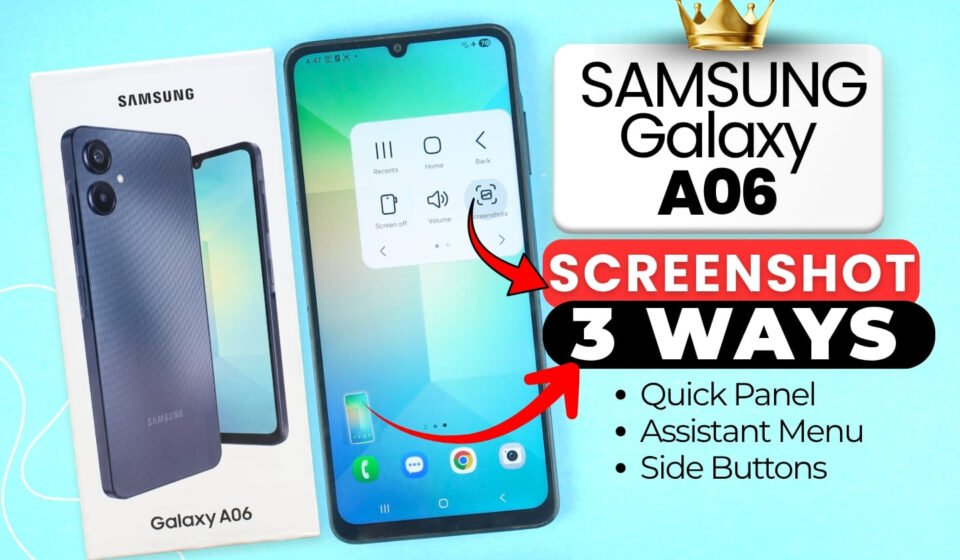

Are you struggling to take a screenshot on your Samsung Galaxy A06? Don’t worry! In this guide, I’ll share three simple ways to take a screenshot on the Galaxy A06. I’ll also show you how to take a long screenshot, so you can capture an entire webpage or a long conversation in one image.
Method 1: Using the Quick Panel
You can add a dedicated screenshot button to your quick settings drop-down menu.
- Swipe down from the top-right corner of your screen to open the Quick Panel.
- Tap the pencil icon to edit your Quick Panel buttons.
- Find the “Take screenshot” option, tap and hold it, then drag it into your active panel. Tap “Done.”
- To take a screenshot, simply swipe down from the top-right corner and tap the new “Take screenshot” icon.
How to take a Long Screenshot
If you are on a long page (like a webpage in Chrome), take a regular screenshot using the Quick Panel method. Once the screenshot is captured, an arrow icon will appear at the bottom of the screen. Tap it to start capturing a scrolling, long screenshot. Both regular and long screenshots will be saved to your Gallery.
Method 2: Using the Assistant Menu
This is a software-based method that gives you a floating, easy-access menu on your screen.
- Open your phone’s Settings.
- Scroll down and select Accessibility.
- Tap on Interaction and dexterity.
- Turn on the Assistant menu. This will create a small floating bubble on your screen that you can drag anywhere. It fades out when not in use so it doesn’t bother you.
- Whenever you want to take a screenshot, tap the bubble and select “Screenshots”.
With that method, you can also take long screenshot. The best part is that this icon or the bubble will fade if you are not going to use it. It will not bother you while using your phone.
Method 3: Using Physical Buttons
This is the classic way to take a screenshot without any on-screen menus.
- Give a quick press to the Volume Down button and the Power Button simultaneously.
Important Note: Do not hold the buttons down, as this method won’t work. It must be a very quick press-and-release!
With that method also, you can also take long screenshot.
Summary
So that’s how you can take a screenshot on your Samsung Galaxy A06. Capturing your screen on the Galaxy A06 is incredibly simple once you know your options. Whether you prefer the classic quick press of the Volume Down and Power buttons, swiping down to use a dedicated Quick Panel shortcut, or keeping the floating Assistant Menu on standby for one-tap access, there is a method to suit everyone. Try out all three to see which one feels the most natural for your daily use!