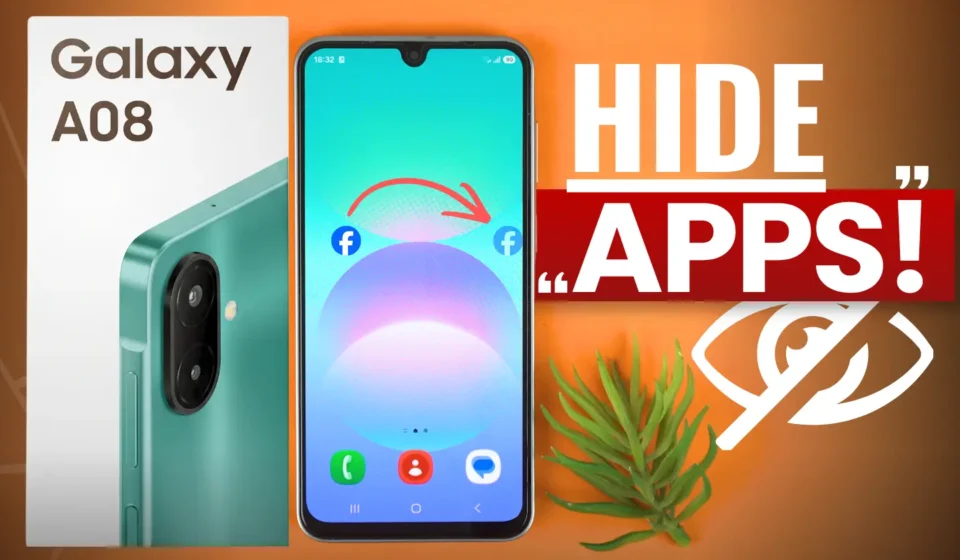
How to Hide Applications on Samsung Galaxy A08 for FREE?

Do you want to hide apps on your Samsung Galaxy A08 without installing any third-party applications? If yes, you can easily do this using the built-in feature available on your phone.
Whether you want to hide financial apps, apps that contain private information, or apps that distract you, Samsung allows you to hide them from your Home screen and Apps screen.
In this guide, I’ll show you how to hide applications on your Samsung Galaxy A08 for free. I’ll also explain how to unhide them whenever you want to use them again.
Follow these simple steps to hide any app on your Samsung Galaxy A08.
Step 1: Open the Home Screen Settings
- First, open the Apps screen on your Samsung Galaxy A08.
- Tap the three dots in the top-right corner of the screen, then select Settings.
- Scroll down and look for Hide apps on Home and Apps screens. Tap this option to open it.
Step 2: Select the app you want to hide
You will now see a list of applications installed on your phone. You can scroll through the list or use the search option to find the app you want to hide.
For example, if you want to hide Facebook, simply select Facebook from the list.
After selecting the app, tap Done which is on top.
That’s it! The selected app is now hidden from your Home screen and Apps screen. The app remains installed on your phone, so you don’t need to download it again when you want to use it.
How to Unhide Apps on Samsung Galaxy A08
If you want to use a hidden app again, you can easily unhide it by following these steps.
- Open the Apps screen.
- Tap the three dots in the top-right corner.
- Select Settings.
- Tap Hide apps on Home and Apps screens.
- Find the hidden app in the Hidden apps section at the top.
- Remove the app from the Hidden apps section.
- Tap Done.
Now, return to the Apps screen. The app will appear in your installed apps list again, and you can open it as usual.
Final Words
There are several reasons why you might want to hide apps on your phone:
- Privacy: Keep certain apps out of sight on your Home screen and Apps screen.
- Financial apps: Hide banking or payment apps from the normal app list.
- Fewer distractions: Hide apps that you don’t want to see every time you open your phone.
- No third-party apps needed: Use the phone’s built-in feature without installing an additional application.
Please note that hiding an app will not delete the app or its data from your Samsung Galaxy A08. It will simply hide the app from your Home screen and Apps screen. You can unhide it anytime you want to use it again.