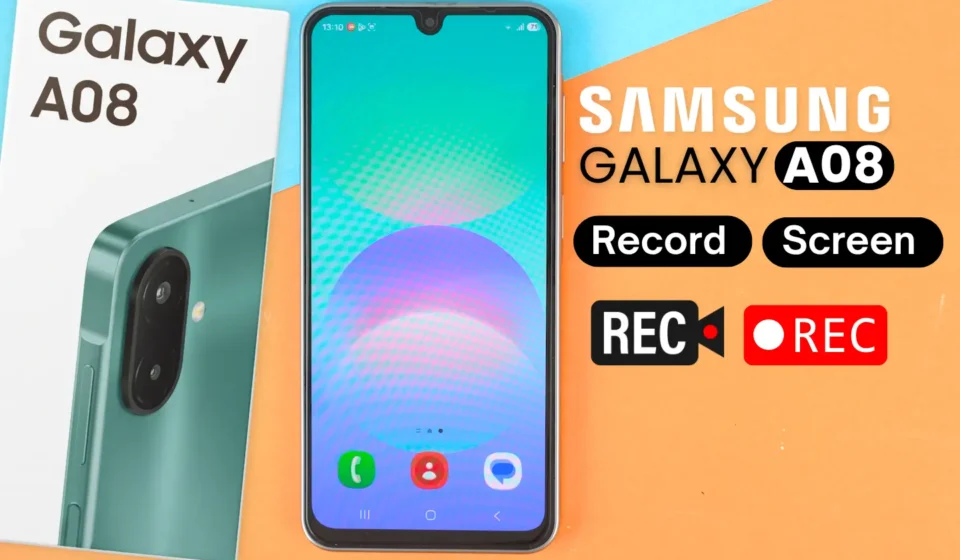

If you’re wondering how to record your screen on the Samsung Galaxy A08, you may have already noticed something frustrating: the phone does not have a built-in Screen Recorder.
But don’t worry. There is still a simple way to record your Galaxy A08 screen without needing a complicated setup. In this guide, I’ll show you how to screen record on the Samsung Galaxy A08, step by step, using an easy alternative that works on the phone.
Whether you want to record a tutorial, capture gameplay, save a video from an app, record a Facebook video, capture a WhatsApp video call, or simply record what’s happening on your screen, follow the steps below to learn how to screen record on the Samsung Galaxy A08.
Since the Samsung Galaxy A08 does not come with a pre-installed Screen Recorder, you won’t find a built-in screen recording option in the Quick Settings panel. But you can still easily record your screen by installing a screen recording app from the Google Play Store.
For this guide, we’ll install XRecorder by InShot, a popular screen recording app that is simple to use and offers useful features. You can also choose any other screen recording app from the Google Play Store if you prefer. Most screen recording apps work in a similar way and follow almost the same basic steps.
Setup & Recording:
- Open the Google Play Store
- Search for XRecorder
- Install XRecorder by InShot
- Open the app Allow the required permissions
Once you’re on the XRecorder dashboard, tap the Record button to start setting up your screen recording. Before you begin, you can choose your preferred audio source, such as Internal Audio, Microphone, or Mute.
After selecting your audio option, tap Start. XRecorder will then begin recording everything displayed on your Samsung Galaxy A08 screen, including apps, videos, gameplay, and other on-screen activity.
To Stop Recording:
When you’re finished recording, simply swipe down from the top of the screen to open the notification panel, then tap Stop to end the recording.
Your screen recording will be automatically saved to your phone’s Gallery, where you can view, edit, or share the video.
XRecorder also includes several useful settings that you can explore to improve your recordings. You can enable noise reduction for clearer audio, increase the video quality to 1080p, and use the built-in tools to compress or edit your recorded videos before sharing them.