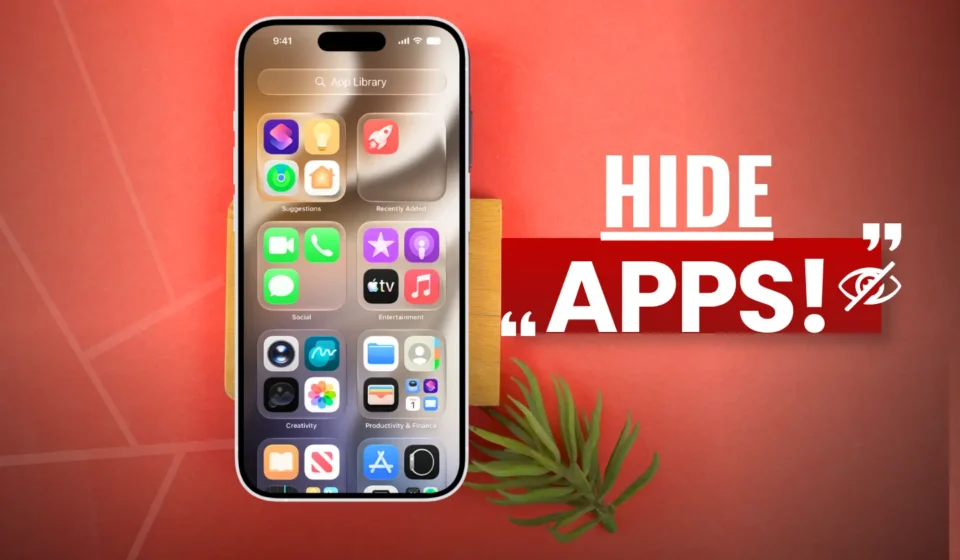

Want to hide an app on your iPhone so it doesn’t appear on your Home Screen or even in the App Library? There are several reasons why you might want to hide an application instead of deleting it.
For example, you may have banking or other applications that you don’t want to be immediately visible when someone else is using your iPhone. Hiding an app can also help keep your Home Screen organized, prevent other people from easily noticing certain apps, or temporarily remove distracting apps without losing any of their data.
The advantage is that you don’t have to delete the application. You can keep it installed on your iPhone and unhide it whenever you need to use it.
In this guide, we’ll show you how to hide any application on an iPhone using a third-party app
Step 1: Install App from the App Store
- First, open the App Store on your iPhone.
- Tap the Search tab and search for Cape – Master Your Screen Time.
- Find the Cape app in the search results and install it.
- Once the installation is complete, open the Cape app to begin the setup process.
Step 2: Complete the Initial Setup
When you open Cape for the first time, the app will guide you through its initial setup.
Follow the instructions shown on the screen and grant the necessary permissions requested by Cape.
You may also need to allow Face ID. This helps protect access to the app and its settings.
Once you’ve completed the setup, you’ll be taken to the main screen of the Cape app.
Step 3: Open App Group 1
On the main screen, tap App Group 1.
Here, you’ll see different options for controlling how the selected applications are managed.
Make sure the option for hiding completely is selected. This option is designed to make the selected app disappear from both your Home Screen and App Library.
Step 4: Choose the Application You Want to Hide
Next, tap Choose Applications.
Cape will display different categories of applications.
Choose the category containing the app you want to hide. For example, if you want to hide Facebook, select the Social category.
Find the application you want to hide and select it.
After selecting the app, tap Done. Then tap Done again to save the application to App Group 1.
Step 5: Hide the Application
Now that you’ve added the application to your app group, tap the Hide button in Cape.
Cape will ask you to confirm the action. Tap Continue.
The selected application should then disappear from your iPhone.
If you selected the complete hiding option, the app will no longer be visible on your Home Screen or in the App Library, while remaining installed on your device.
Step 6: Unhide the Application
When you want to use the application again, simply open the Cape app.
Tap the Hidden button to access the applications you’ve hidden.
Select the application you want to restore and follow the instructions to unhide it.
The application will then become available on your iPhone again, including on the Home Screen and in the App Library.
Why Hide an App Instead of Deleting It?
Deleting an application removes it from your iPhone, which means you’ll need to download it again if you want to use it later.
Hiding an app gives you another option. You can keep the application installed while removing it from normal view.
This can be particularly useful for:
- Banking and payment apps: Keep financial apps out of immediate view when someone else is using your phone.
- Private applications: Hide apps that contain personal information without deleting them.
- Social media apps: Temporarily hide distracting apps while keeping your account and data intact.
- Work applications: Keep work-related apps out of sight on a personal iPhone.
- A cleaner Home Screen: Remove apps you don’t frequently use without uninstalling them.
- Shared phone situations: Make certain applications less noticeable when lending your iPhone to someone.
Keep in mind that hiding an application is mainly a privacy and organization feature. It should not be treated as a replacement for the security features provided by your banking or financial apps, such as Face ID, passcodes, and two-factor authentication.