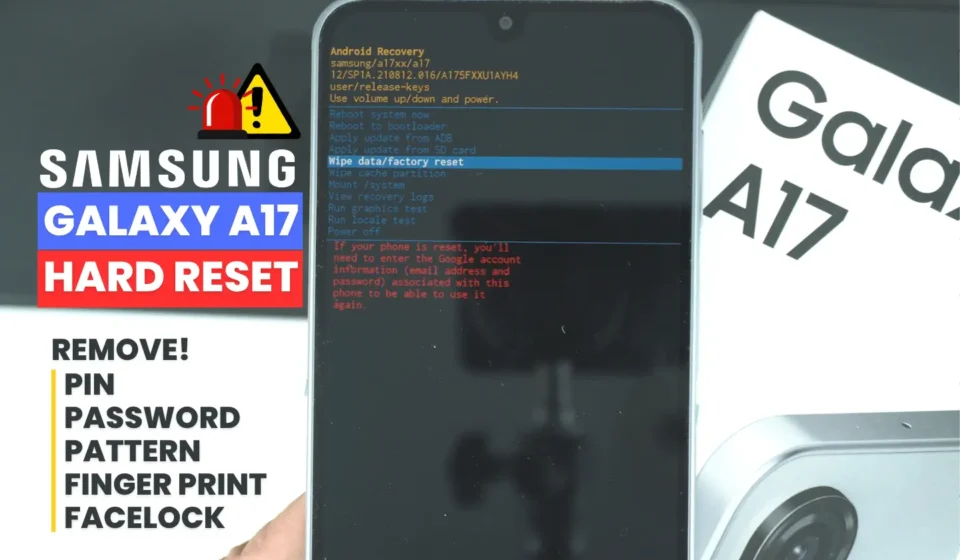
Samsung Galaxy A17 5G: How To Hard Reset | Remove Screen Lock | Fingerprint – Password – PIN – Pattern

Here is a step-by-step guide on how to perform a hard factory reset on the Samsung Galaxy A17 5G when you have forgotten your screen lock (PIN, password, pattern, fingerprint, or face lock) and cannot access the phone. This method can be used on both the Samsung Galaxy A17 5G and the Samsung Galaxy A17.
Step #1: Connect to a PC:
Plug your Samsung Galaxy A17 into a powered-on laptop or desktop computer using a USB cable. This step is mandatory, and a standard wall charger will not work.
Step #2: Access the Power Menu:
Then, press and hold the Power and Volume Down buttons simultaneously for a few seconds until the power menu appears.
Step #3: Force a Black Screen
Even power menu appear, keep holding Power and Volume Down until phone’s screen will go black. When this happens, release both buttons.
Step #4: Turn On The Phone
And when you see the charging icon, press and hold the Power button. And when you see the Samsung logo for the first time, immediately press and hold the Volume Down button along with the Power button. During this step, do not release the Power button.
Step #5: Switch to Volume Up
When the screen goes black for the second time, release both the Power and Volume Down buttons, then immediately press and hold the Volume Up button.
Step #6: Enter Recovery Mode
Keep holding the Volume Up button until the phone enters Recovery Mode, which should happen within a few seconds
Step #7: Navigate to Wipe Data
Since the touch screen is disabled in Recovery Mode, use the Volume keys to scroll down to Wipe data/factory reset and press the Power key to select it.
Step #8: Confirm the Reset
You will see a warning that this process will erase all data (photos, contacts, apps, etc.). Scroll down to Factory data reset and press the Power key to confirm
Step #9: Reboot the Phone
Once you see the “Data wipe complete” message at the bottom of the screen, select the option to reboot the system by pressing the Power key.
Step #10: Final Setup
You can now disconnect the USB cable and wait for the phone to restart. Note that you will still need to log in with the previous Google account associated with the device to complete the setup
Please note that a hard/factory reset will erase all data stored on the phone, including apps, photos, files, contacts, messages and personal settings. After the hard/factory reset, your phone may ask you to sign in with the Google account that was previously linked to the device. Make sure you know the Google account email address and password before resetting the phone.