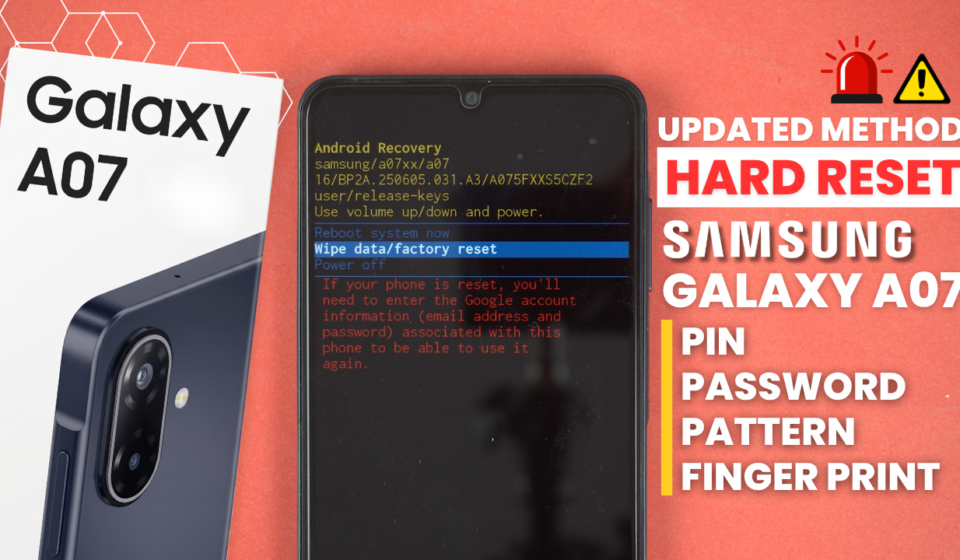
Samsung Galaxy A07: How To Hard Reset | Remove Screen Lock | Fingerprint – Password – PIN – Pattern

Here is step-by-step guide on how to perform a hard factory reset on a Samsung Galaxy A07 to remove a forgotten screen lock (PIN, password, pattern, or fingerprint).
Step #1
Connect the Galaxy A07 to a laptop or desktop computer using a USB cable. This is mandatory for the process to work.
Step #2
Now, press and hold the Volume Down and Power buttons simultaneously.
Step #3
The phone’s screen will go black. When this happens, release both buttons. And when you see the charging icon, press and hold the Power button.
Step #4
When you see the Samsung logo for the first time, immediately press and hold the Volume Down button along with the Power button. During this step, do not release the Power button.
Step #5
When the screen goes black for the second time, release both the Power and Volume Down buttons, then immediately press and hold the Volume Up button.
Keep holding the Volume Up button until the phone enters Recovery Mode, which should happen within a few seconds.
Step #6
Now, use the Volume buttons to navigate to Wipe data/factory reset, and press the Power button to select it.
Step #6
On the next screen, navigate to Factory data reset and press the Power button to start the process.
Step #7
After the factory reset is complete, select Reboot system now to restart the phone.
After the phone restarts, the screen lock will be removed. However, this process will also erase all data stored on the phone.

Hi, this is a comment.
To get started with moderating, editing, and deleting comments, please visit the Comments screen in the dashboard.
Commenter avatars come from Gravatar.